How do you change the Codex CLI account?
Use codex login status to inspect the active authentication method. To change accounts manually, clear the cached CLI login with codex logout, run codex login, and complete OpenAI’s browser flow with the intended account and workspace.
codex login status
codex logout
codex login
OpenAI documents these commands and the available credential stores in Codex authentication. Signing in with ChatGPT uses subscription access; signing in with an API key uses metered API billing instead.
Where that login is kept depends on cli_auth_credentials_store in ~/.codex/config.toml. With file it is ~/.codex/auth.json; with keyring or auto it goes into the macOS Keychain as Codex Auth; with ephemeral it lives in memory only and is gone when the process exits. Since Codex 0.155, switching accounts also invalidates state tied to the previous identity, so expect a fresh start rather than a carried-over session.
Why does ChatGPT account switching not cover Codex CLI?
OpenAI supports keeping two accounts signed in on ChatGPT web, commonly for work and personal separation. Its account-switching documentation says that each account keeps independent chats, memory, history, billing, and workspaces. It also states that this switcher is not currently supported in Codex desktop.
Codex CLI caches its own authentication, shared with the Codex IDE extension according to OpenAI’s current documentation. Changing the active browser account therefore does not prove that a terminal is using the same identity. Check the CLI before opening a sensitive repository or consuming a managed workspace’s allowance.
This is the same trap that catches Claude Code users, for the same reason: the browser and the terminal hold independent sessions. Keeping work and personal accounts separate covers the habits that make the boundary visible.
What does a scoped Codex switch write?
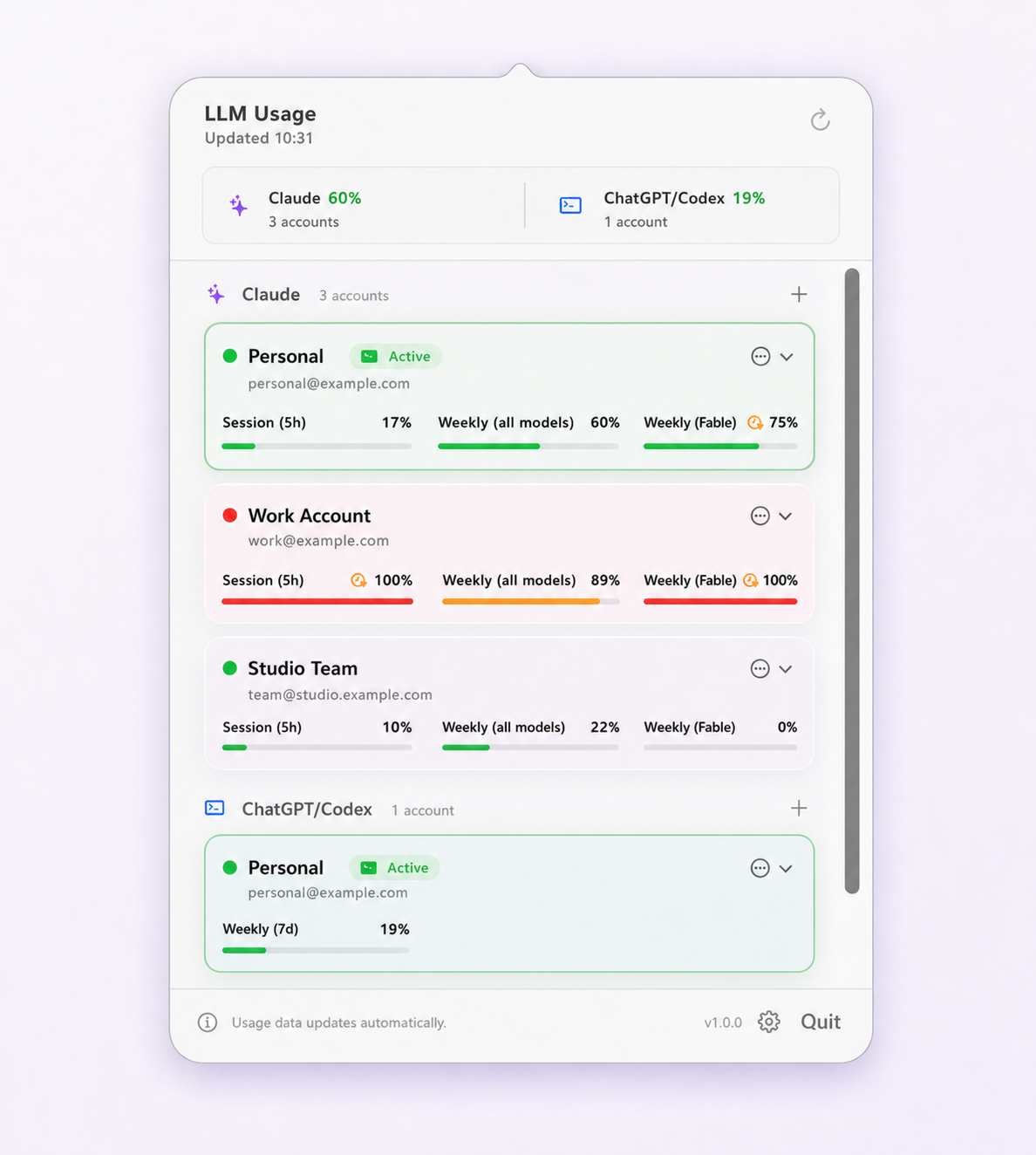
Limit Lifeboat captures the authenticated Codex account as a named local profile and stores its app-managed credential snapshot in macOS Keychain. The menu-bar view then keeps each account’s identity, last usage reading, reading age, and active state visible.
A requested switch preserves unrelated Codex and MCP settings, stages private rollback material, restores the selected identity, and validates it before reporting success. A failed validation rolls back. If another process changes the live credentials during the transaction, the app does not overwrite that newer external change.
For Codex the write is scoped to the credential keys in ~/.codex/auth.json: auth_mode, tokens, OPENAI_API_KEY, and last_refresh, plus the newer agent_identity, personal_access_token, and Bedrock keys, so one account's token never lingers next to another's. Anything else in that file, and every other file under ~/.codex, is left as it was.
Because the switch works by rewriting auth.json, it only means something when Codex actually reads its login from that file. If cli_auth_credentials_store is set to anything other than file, Limit Lifeboat refuses to switch Codex rather than report a switch that changed nothing. And Codex 0.156 and later can run a shared background app-server daemon. Like any running Codex process, it keeps the login it loaded in memory, so after a switch it keeps using the previous account until it is restarted. When the daemon is running, the app says so and suggests codex app-server daemon restart.
Limit Lifeboat switches one global Codex CLI login at a time. It does not start parallel isolated Codex homes or switch ChatGPT Desktop. Manual switching is the default; optional switching at 5% session remaining or 1% weekly remaining is disabled until you explicitly enable it.
What are the workspace and billing boundaries?
Use a managed work account only for activity authorized by that organization. OpenAI notes that workspace policies, roles, retention, and administrative controls follow the account used to sign in. A personal account stays independent from the managed workspace.
Account switching must not be presented as a way to circumvent provider restrictions. OpenAI’s Terms of Use prohibit circumventing rate limits or restrictions. Limit Lifeboat does not merge allowances, share accounts between people, or alter a provider’s enforcement.
To manage the other supported CLI, read how to switch Claude Code accounts on Mac. For what Codex actually reports about its limits, including earned resets, see Codex CLI rate limits explained. When two tools report different remaining usage, the reasons are knowable.
Questions and boundaries
Does the ChatGPT account switcher also switch Codex CLI?
No. OpenAI’s account switcher applies to ChatGPT web and is not currently supported in Codex desktop. Codex CLI keeps its own cached authentication, so verify the CLI separately.
Where does Codex CLI keep authentication?
It depends on cli_auth_credentials_store in ~/.codex/config.toml. With file, the login is auth.json under CODEX_HOME. With keyring or auto it goes in the macOS Keychain (the Codex Auth item), and with ephemeral it is held in memory only. Treat every location as sensitive. Limit Lifeboat switches by swapping auth.json, so it refuses to switch Codex unless the setting is file.
Does Limit Lifeboat switch the ChatGPT desktop app?
No. It changes only Codex CLI authentication fields. ChatGPT web, ChatGPT Desktop, and Codex CLI remain separate sessions.
Can I mix a ChatGPT subscription account and an API key account?
Yes, but they bill differently. Signing in with ChatGPT uses your subscription allowance, while signing in with an API key uses metered API billing. Limit Lifeboat reports subscription usage windows; it does not estimate API spend.